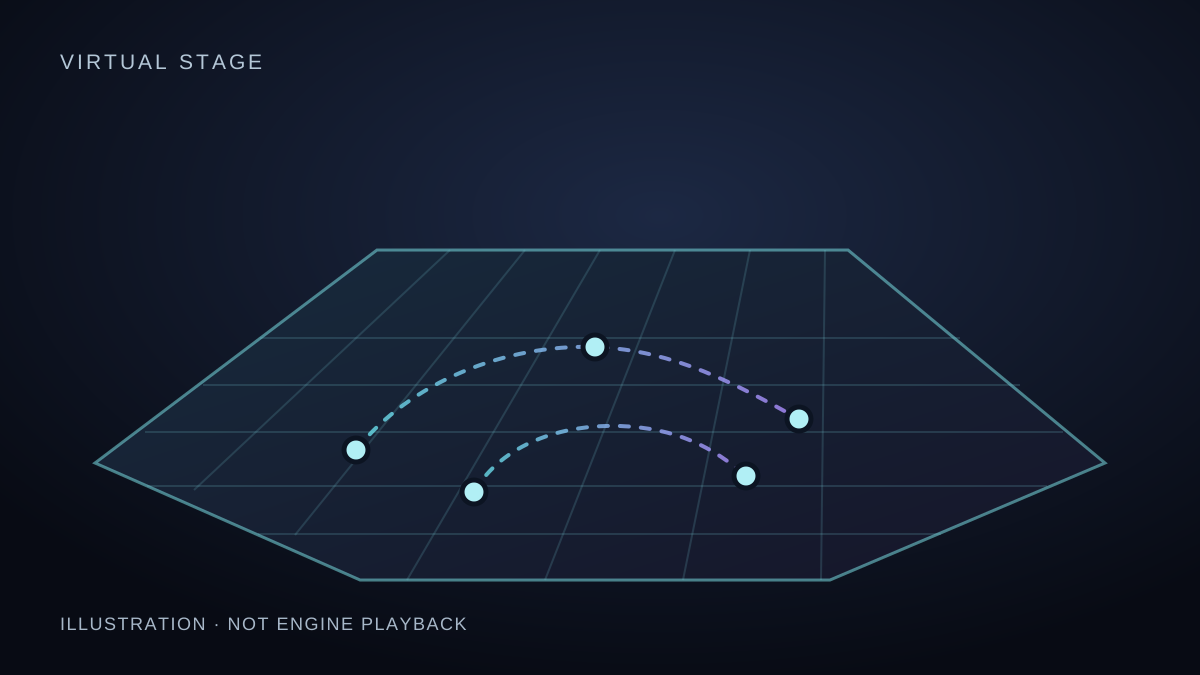
A bigger view, if you want one
Practise on
a TV.
A TV is optional. You can still practise directly on your phone or tablet. For the bigger view, open the actual Virtual Stage Viewer using your teacher’s dancer link—not the illustration on this public website.
First, turn on a compatible TV or receiver. Many methods require the TV and your phone, tablet or computer to use the same Wi-Fi network; other methods connect directly. Check your devices’ instructions. You may need an internet connection to open the routine. Then choose the method for your device:
01iPhone or iPad · AirPlay
Requires an Apple TV or an AirPlay-compatible TV.
- Open your teacher’s link in the Viewer on your device.
- Open Control Center, tap Screen Mirroring, and select the TV. Enter the TV’s AirPlay passcode if asked.
- Keep the Viewer open while you practise. To finish, return to Screen Mirroring and tap Stop Mirroring.
02Android · Screen mirroring
Your Android device and TV or receiver must support the same mirroring method; names and compatibility vary.
- Open your teacher’s link in the Viewer.
- Open Quick Settings and, if available, choose Screen Cast, Screen Mirroring or Smart View. Select a compatible TV and approve the connection if prompted.
- Keep the Viewer open. Use the same mirroring controls to disconnect when finished.
For example, compatible Samsung Galaxy devices can use Smart View with a supported TV. Check your device and TV instructions if you cannot see a mirroring option.
03Windows or Mac · Chrome
Requires an up-to-date Chrome browser and a TV or receiver with Google Cast, such as Chromecast.
- Open your teacher’s Viewer link in a Chrome tab.
- Choose Chrome’s More (⋮) → Cast, save, and share → Cast. If a Sources menu appears, select Cast tab, then select your TV.
- Leave the Viewer tab open. Select Chrome’s Cast control and Stop casting when finished.
Menu wording can vary. On macOS 15 or later, Chrome may need permission in system settings.
Set up the room. Try landscape orientation if your device allows it; enlarge the view where possible and check that the whole stage, counts and any provided cues are readable from across the room. Leave a clear space to move. Picture, sound and timing can vary or lag with the network and devices.
If the connection drops or timing looks wrong. Stop moving and pause on the source device. Reconnect using your device and TV controls, then check the stage, counts, any cues and sound together before resuming. Use one audio output to avoid an echo. If it is not working, practise directly on your phone or tablet.
Keep the link private. Mirror only to a trusted TV. Screen mirroring can show notifications, other apps and the teacher’s private link; hide sensitive notifications and do not share the link without your teacher’s permission.
These methods use device or browser mirroring, not a built-in Viewer Cast button or a dedicated TV app; those would be separate features. Actual Viewer installation and TV/device combinations have not been tested here, so compatibility and playback are not verified.